Welcome to the Alwijjha Documentation
This guide helps you understand and use all features of the Alwijjha system.
What You’ll Find Here
This documentation provides a clear overview of all screens, features, and workflows available in the Alwijjha platform. It is designed to help admins, managers, and staff use the system confidently and efficiently.
You can navigate through different sections using the sidebar menu to learn how to manage dashboards, catalogues, bookings, warehouses, inspections, invoices, and more.
Dashboard
Main dashboard view with key metrics
Dashboard Overview
The main dashboard displays real-time data and key performance indicators at a glance.
Features include customizable widgets, data filters, and export options for comprehensive reporting.
Analytics
Detailed analytics and insights
Analytics Tools
Advanced analytics provide deep insights into your data with interactive charts and graphs.
Use the filtering options to customize your view and export data for further analysis.
Reports
Generate and view reports
Report Generation
Create custom reports with various templates and data sources.
Schedule automated reports and share them with team members easily.
Teller Dashboard
Teller Dashboard
Provides overview of the current fleet and bookings.
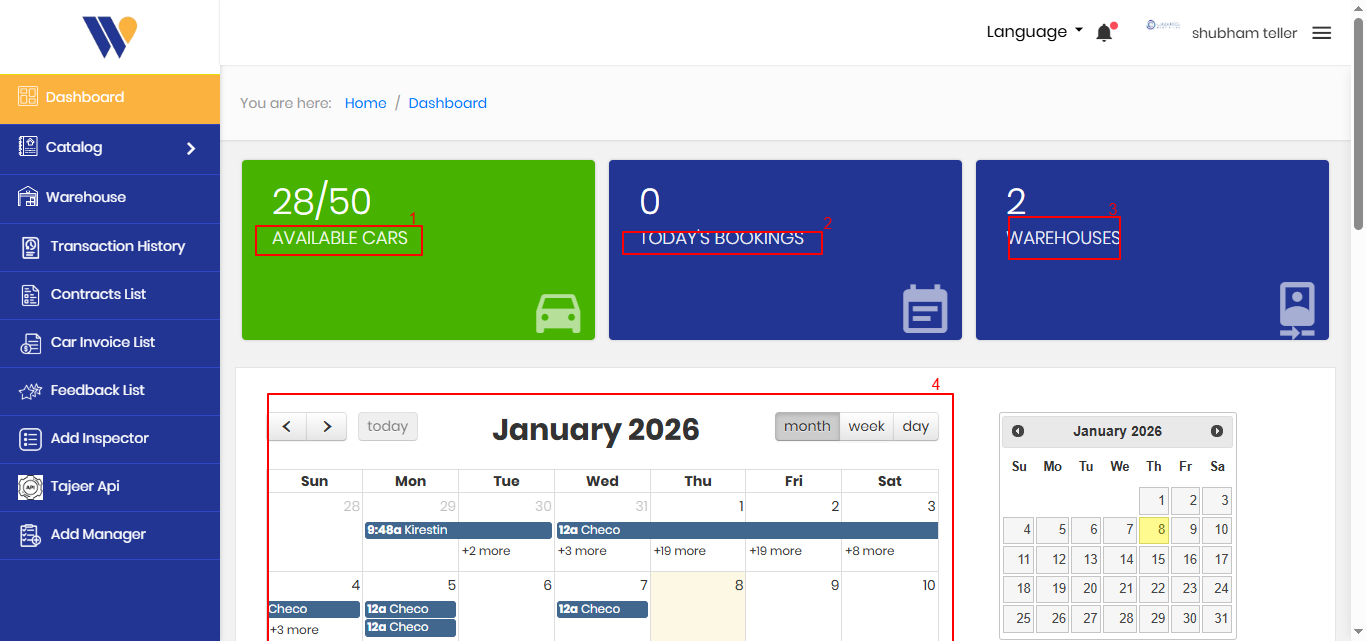
- Available Cars – Displays the number of cars currently available out of the total fleet.
- Today’s Bookings – Shows the total number of bookings scheduled for today.
- Warehouses – Indicates the total number of active warehouses in the system.
- Calendar View – Displays scheduled bookings and activities with options to switch between month, week, and day views and navigate dates.
Catalogue
Manage car fleet and prices.
Partnar Catalogue
View and manage all users in the system. Add, edit, or remove user accounts as needed.
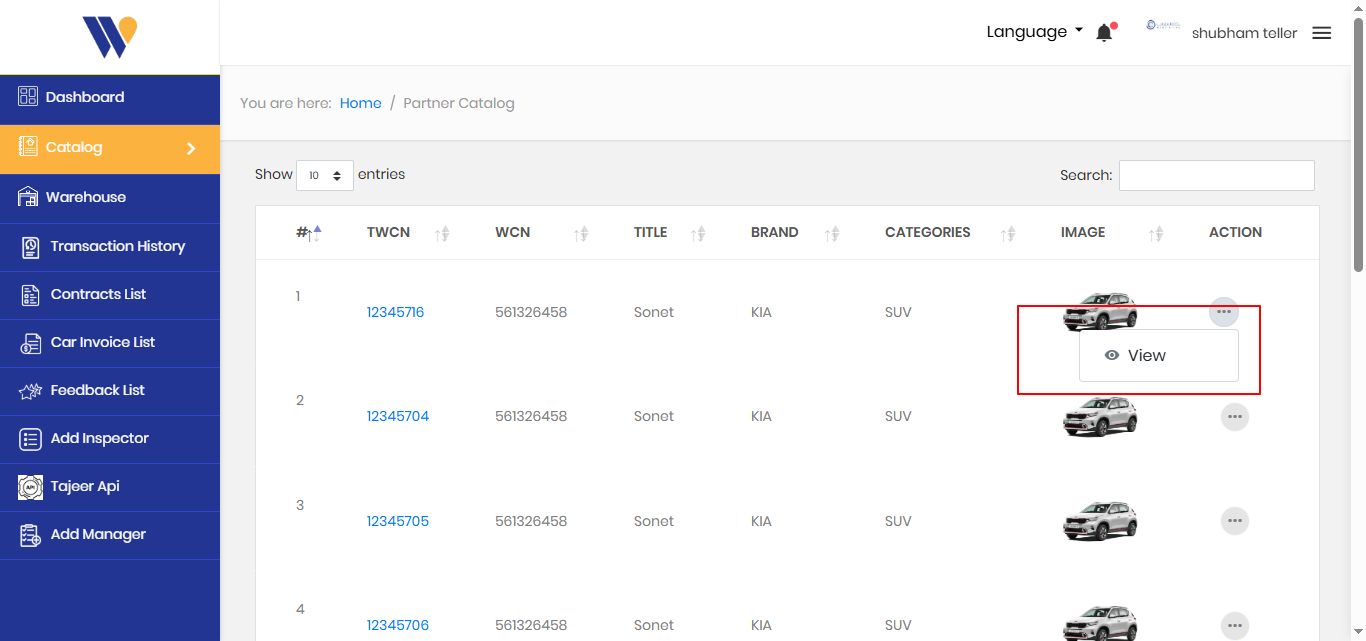
- View Product Details – Displays the vehicle image and allows the user to view detailed information about the selected catalog item.
Alwijjha Catalogue
Browse available car brands and manage the Alwijjha vehicle catalog. Users can request new car entries and explore brand-specific listings.
- Add Car Catalog Request – Allows users to submit a request to add a new car or brand to the Alwijjha catalog.
- Car Brand Selection – Displays available car brands; selecting a brand shows its associated vehicles and catalog details.
Select car from catalogue
Browse cars by category and view available models in the Alwijjha catalogue. Users can filter vehicles by type and select a specific car for further actions.
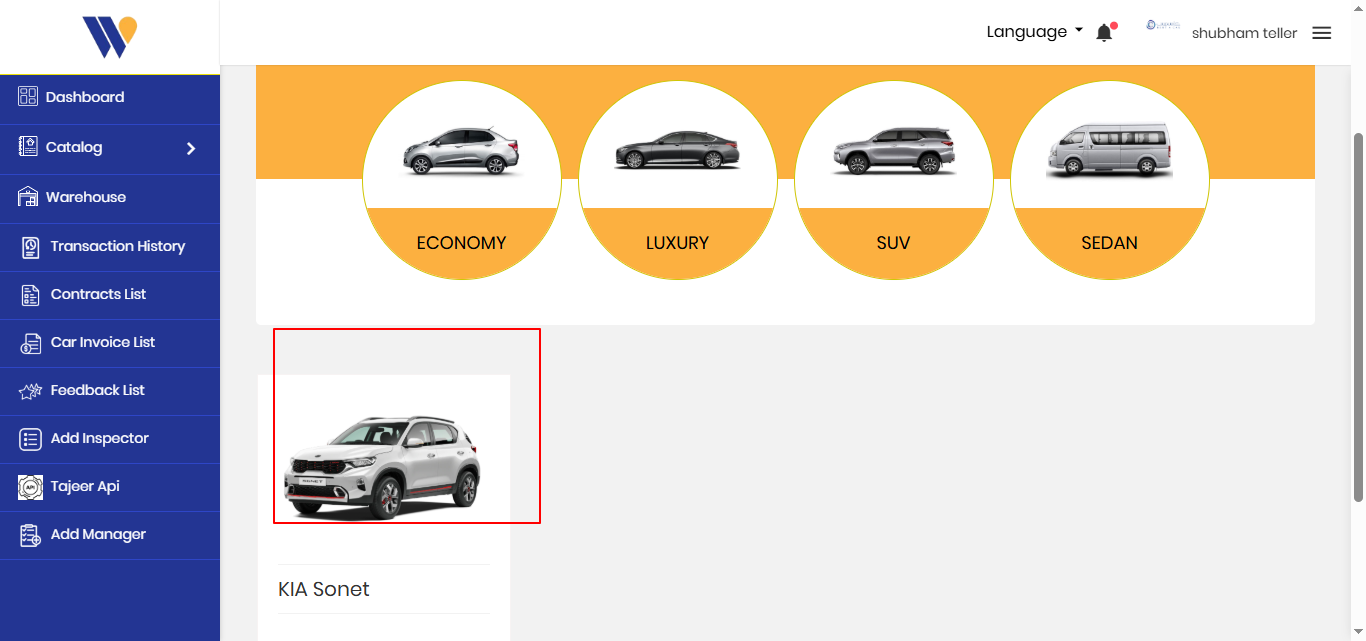
- Car Category Filter – Displays vehicle categories such as Economy, Luxury, SUV, and Sedan to help users filter cars.
- Car Listing – Shows available cars with images and model names; users can select a car from the list.
Manage car offer
View detailed information of the selected car and manage its offer settings. Users can enable or disable the offer, set pricing, assign warehouses, and review related content, deals, and history.
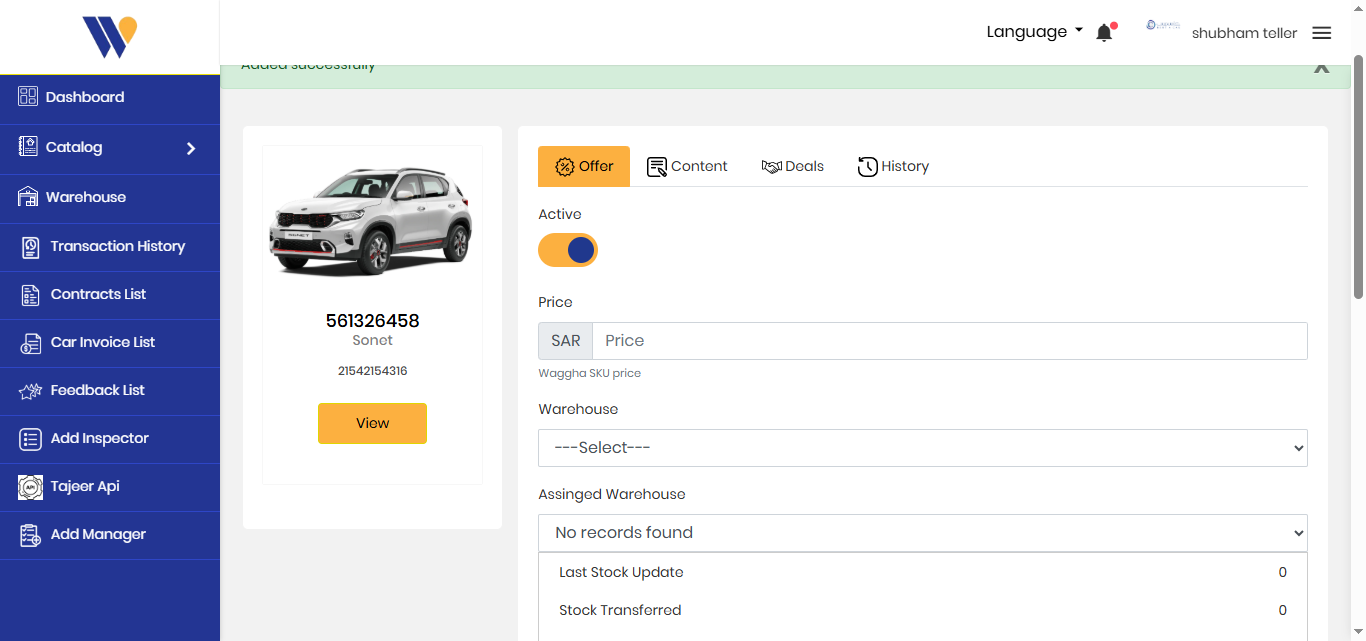
- Car Details – Displays the selected car image, model name, and identification details.
- Offer Status – Allows users to activate or deactivate the car offer using the toggle switch.
- Pricing – Enables users to set the car price in the selected currency.
- Warehouse Assignment – Allows selection and assignment of warehouses for the car.
- Additional Tabs – Provides access to Content, Deals, and History related to the selected car.
Add car catalog request
Submit a request to add a new car to the Alwijjha catalogue. Users must provide essential vehicle information including name, brand, year, category, and a brief description.
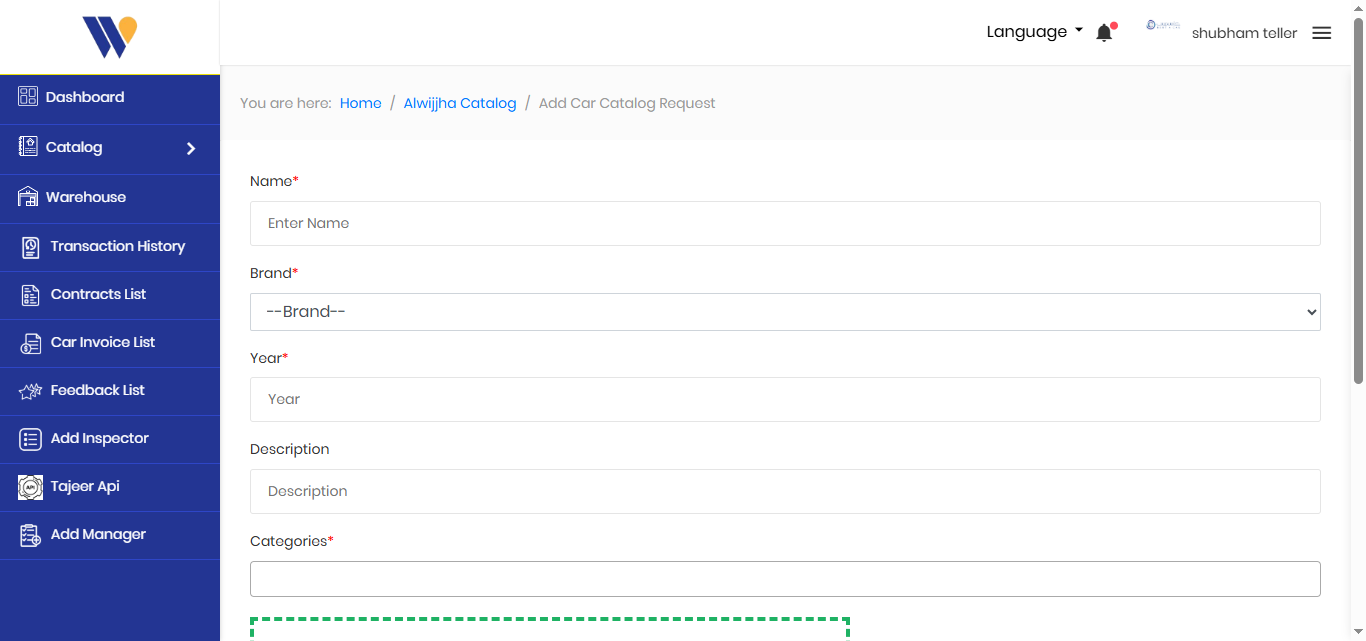
- Car Name – Enter the name or model of the car.
- Brand Selection – Select the car brand from the dropdown list.
- Manufacturing Year – Specify the year of the car model.
- Description – Provide additional details about the car.
- Category – Assign the car to a category such as Economy, SUV, Luxury, or Sedan.
Import & Update Car Catalogues
Upload car catalogues and manage car details in bulk using an Excel file. This feature allows admins to add new catalogues with cars or update existing car information quickly and easily.
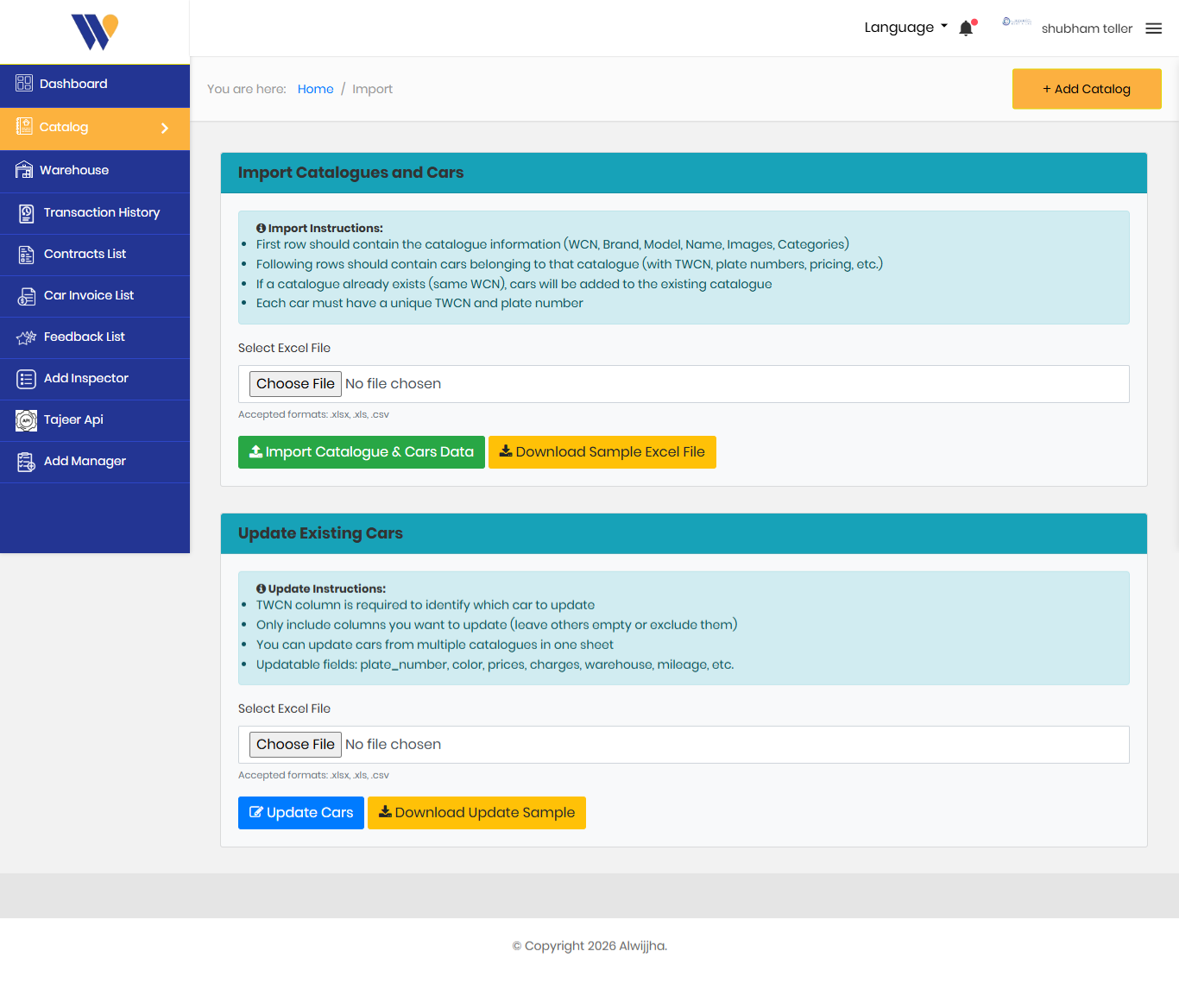
- Download Sample File – Start by downloading the sample Excel file to understand the correct format.
- Catalogue Information – The first row should include catalogue details such as catalogue name, brand, model, category, and images.
- Add Cars to Catalogue – Enter car details in the rows below, including TWCN, plate number, price, and other required information.
- Automatic Catalogue Matching – If the catalogue already exists, cars will be added to it automatically.
- Update Existing Cars – To update car details, include the TWCN and only the fields you want to change. Leave other fields empty.
- Multiple Catalogues – You can add or update cars from multiple catalogues in a single Excel file.
- Unique Identification – Each car must have a unique TWCN and plate number to avoid duplication.
View & Filter Available Cars
Browse all available cars and easily filter results based on location and category. This screen helps admins and users quickly find suitable cars for booking.
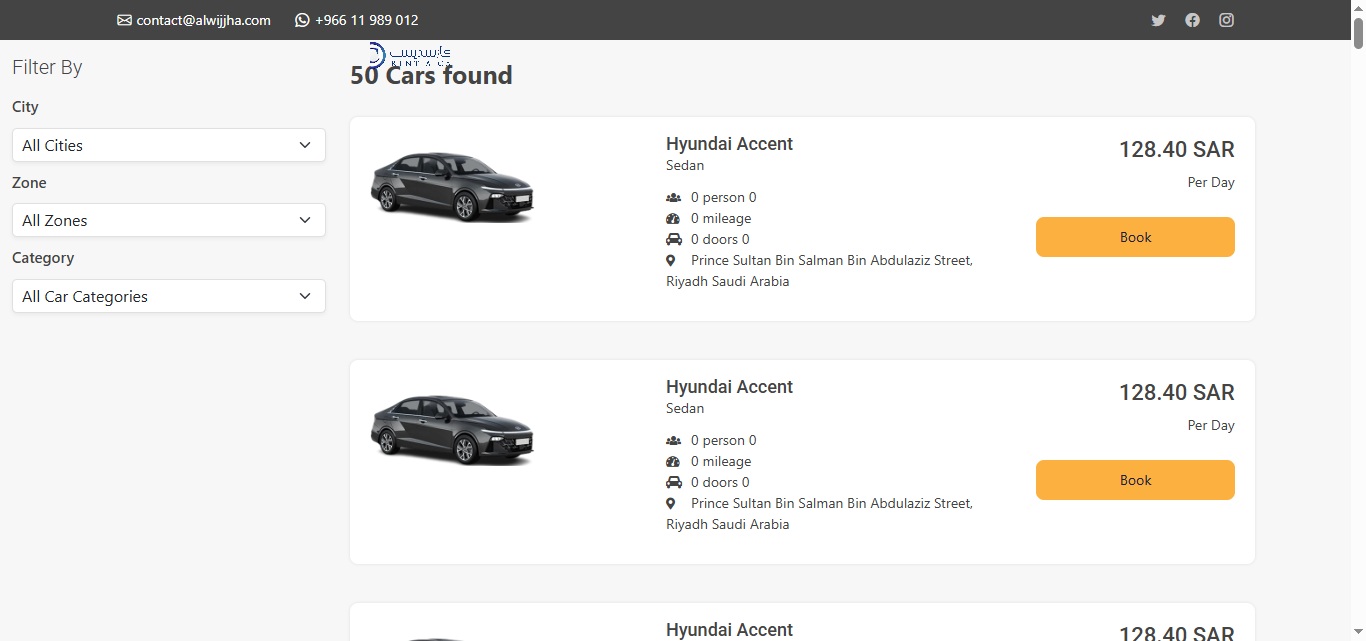
- Cars Found – Displays the total number of cars available based on selected filters.
- City Filter – Select a city to view cars available in that specific location.
- Zone Filter – Narrow down results by choosing a specific zone within the selected city.
- Category Filter – Filter cars by category such as Sedan, SUV, Economy, or Luxury.
- Car Details – Each listing shows the car image, model name, category, seating capacity, mileage, doors, and location.
- Pricing – Displays the rental price per day clearly for each car.
- Booking Action – Click the “Book” button to proceed with the car booking process.
Contract Booking History
View and manage all contract bookings in one place. This screen helps admins track booking dates, payment status, and car pickup status, and perform quick actions when needed.
Contract Booking History
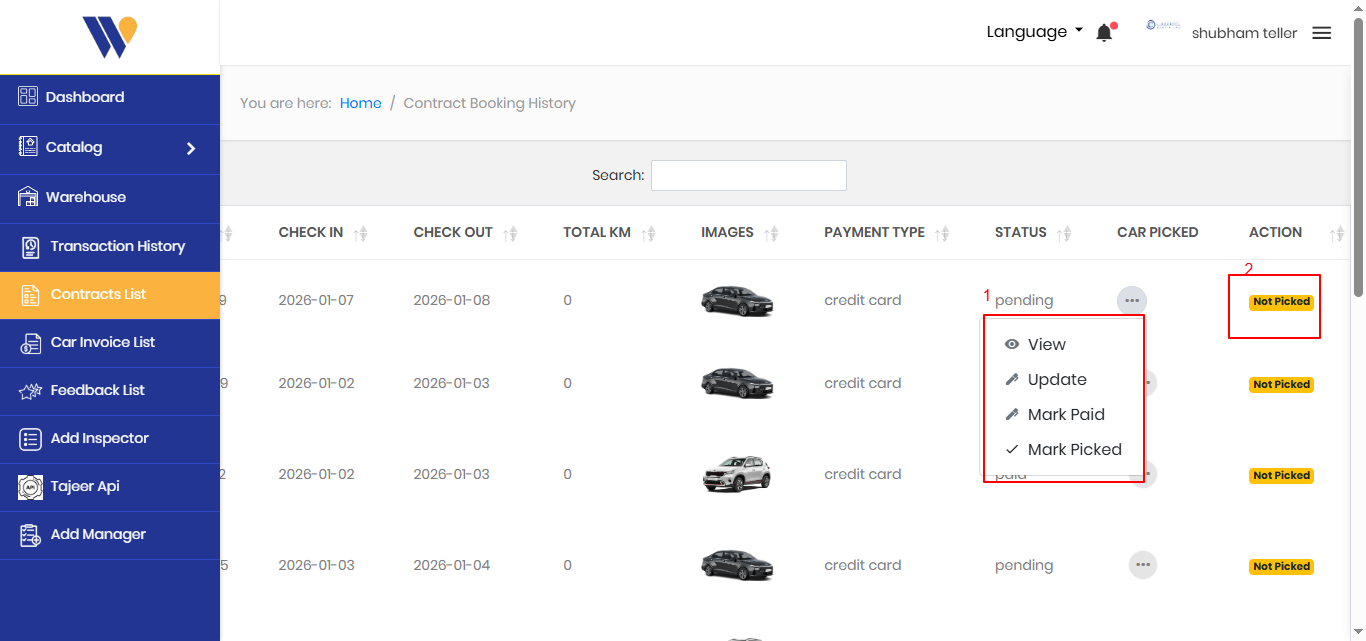
- Booking Dates – Displays the check-in and check-out dates for each booking.
- Car Details – Shows the booked car image along with total kilometers used.
- Payment Type – Indicates how the booking was paid, such as credit card.
- Booking Status – Displays the current status of the booking, such as pending or paid.
- Pickup Status – Clearly shows whether the car has been picked up or not.
- Action Menu – Use the action menu to view booking details, update information, mark payment as paid, or mark the car as picked.
Manage Warehouses
View and manage all warehouses from a single screen. This section allows admins to add new warehouses, view warehouse details, manage assigned cars, and access warehouse locations easily.
Manage Warehouses
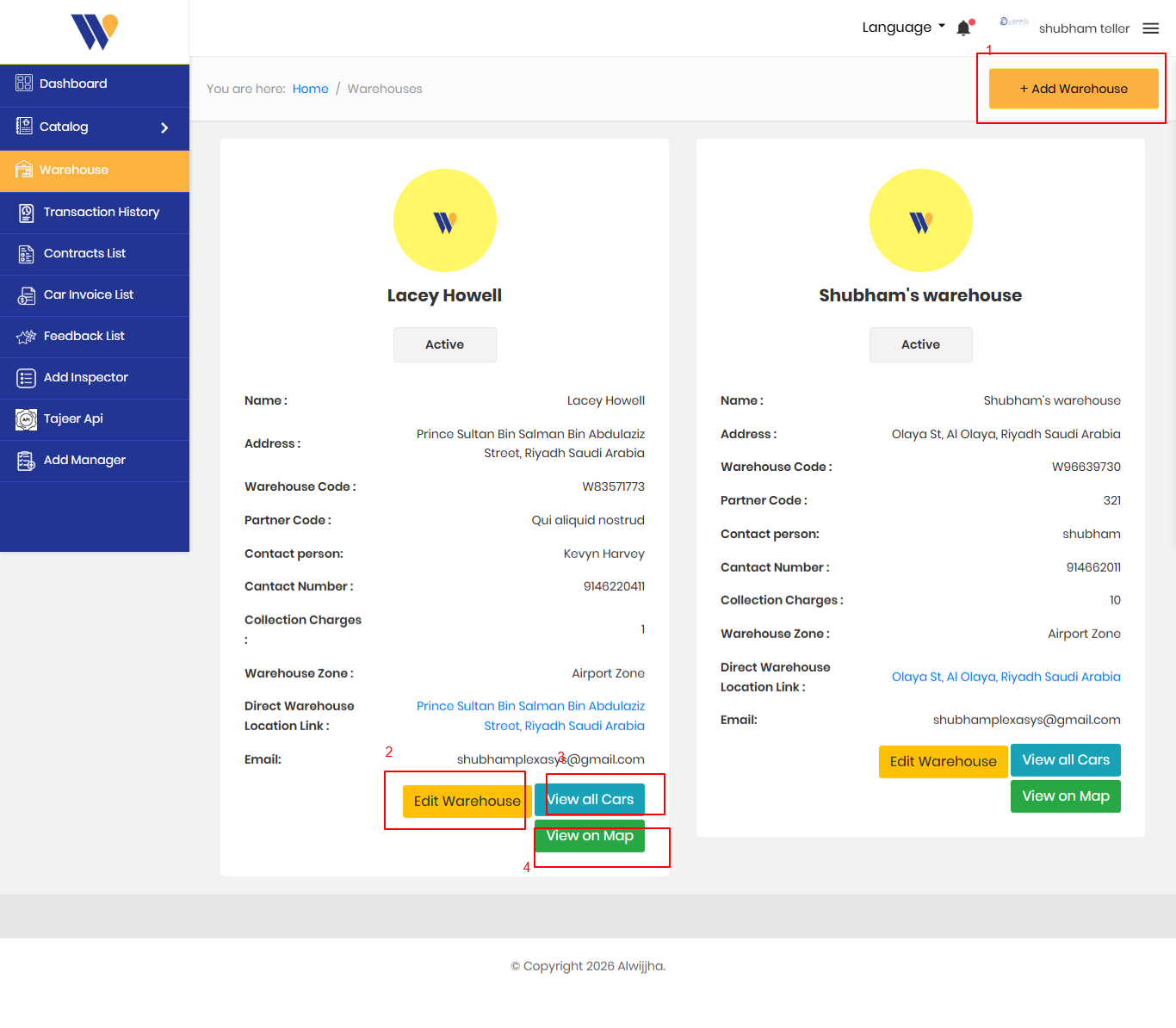
- Add Warehouse – Use this button to add a new warehouse by entering location and contact details.
- Warehouse Details – Displays key information such as warehouse name, address, code, contact person, and status.
- Edit Warehouse – Allows admins to update warehouse information when changes are required.
- View Assigned Cars – Shows all cars currently linked to the selected warehouse.
- View on Map – Opens the warehouse location directly on the map for easy navigation.
Car Invoice Lis
View and manage all car rental invoices in one place. This screen allows admins to review invoice details, check rental periods, and download invoices when needed.
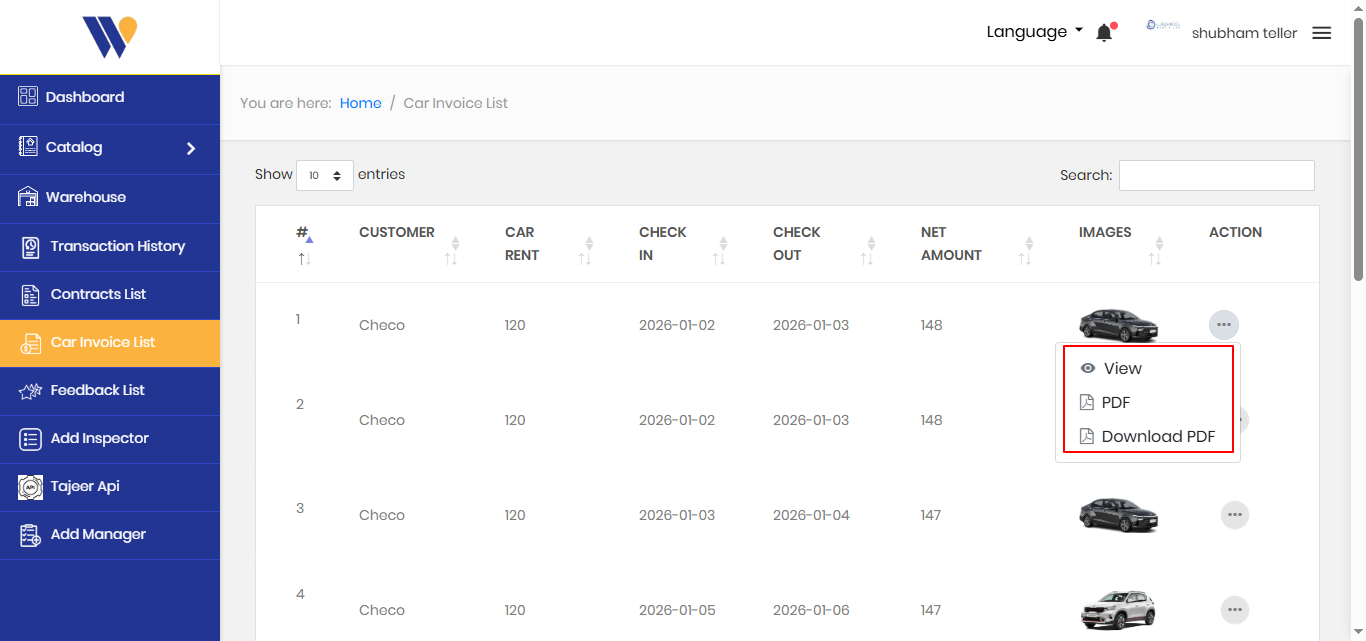
- Invoice Records – Displays a list of all generated car rental invoices with customer and rental details.
- Rental Information – Shows car rent amount, check-in and check-out dates, and total payable amount.
- Car Preview – Displays the image of the rented car for easy identification.
- Invoice Actions – Use the action menu to view the invoice, generate a PDF, or download the invoice as a PDF file.
Manage Inspectors
View and manage all car rental invoices in one place. This screen allows admins to review invoice details, check rental periods, and download invoices when needed.
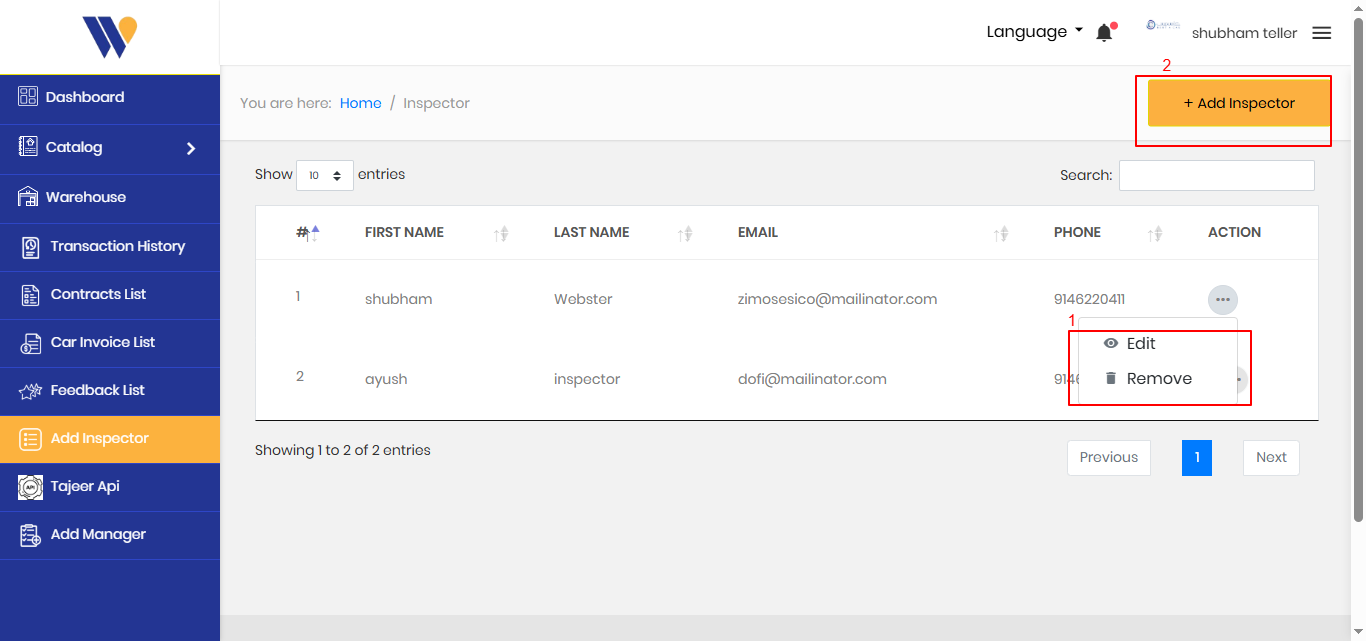
- Add Inspector – Use this button to add a new inspector by entering their basic details such as name, email, and phone number.
- Inspector List – Displays all inspectors with their first name, last name, email address, and contact number.
- Edit Inspector – Allows admins to update an inspector’s details whenever changes are needed.
- Remove Inspector – Removes an inspector from the system if they are no longer active or required.
Manage Managers
View and manage all managers from a single screen. This section allows admins to add new managers, update manager details, or remove managers when required.
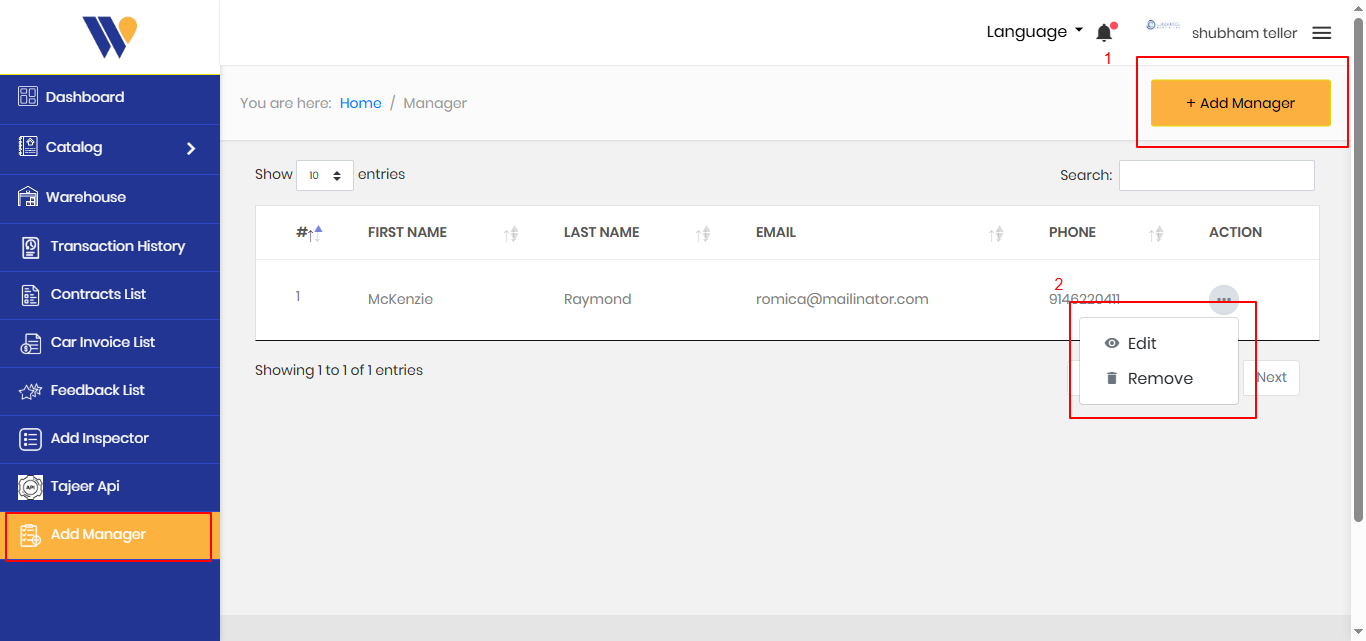
- Add Manager – Use this button to add a new manager by entering their basic details such as name, email, and phone number.
- Manager List – Displays all managers with their first name, last name, email address, and contact number.
- Edit Manager – Allows admins to update a manager’s details whenever changes are needed.
- Remove Manager – Removes a manager from the system if they are no longer active or required.
Settings
System configuration and preferences
System Settings
Configure global settings, notifications, and system preferences.
Customize the application behavior and appearance to match your organization's needs.
Inspector Overview
Inspection and monitoring tools
Inspector Features
The Inspector provides detailed monitoring and debugging capabilities for system activities.
Monitor system health, review logs, and inspect detailed information about operations.
Inspector Dashboard
Main inspection interface
Dashboard Overview
The Inspector Dashboard shows real-time system metrics and performance indicators.
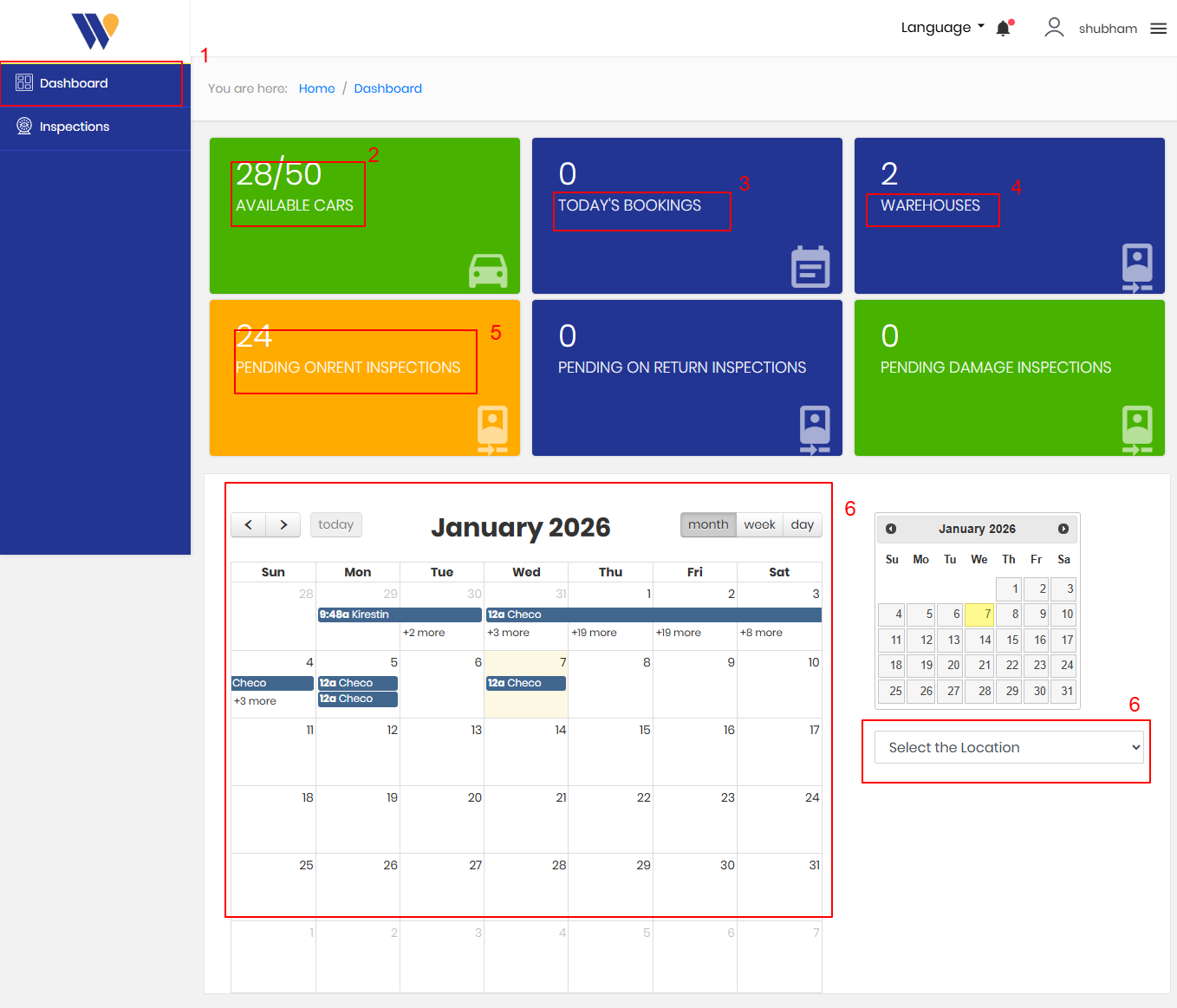
- Sidebar Navigation Main menu to navigate between Dashboard and Inspections modules.
- Available Cars Shows the number of cars currently available out of the total fleet.
- Today’s Bookings Displays how many bookings are scheduled for the current day.
- Warehouses Indicates the total number of warehouses configured in the system.
- Pending On-Rent Inspections Shows the count of inspections pending before cars are rented out.
- Calendar & Filters Section Displays booking/inspection schedules in a calendar view, with date navigation and a location selector for filtering.
Inspections
Detailed inspection information
Inspections
Insection detailed view.
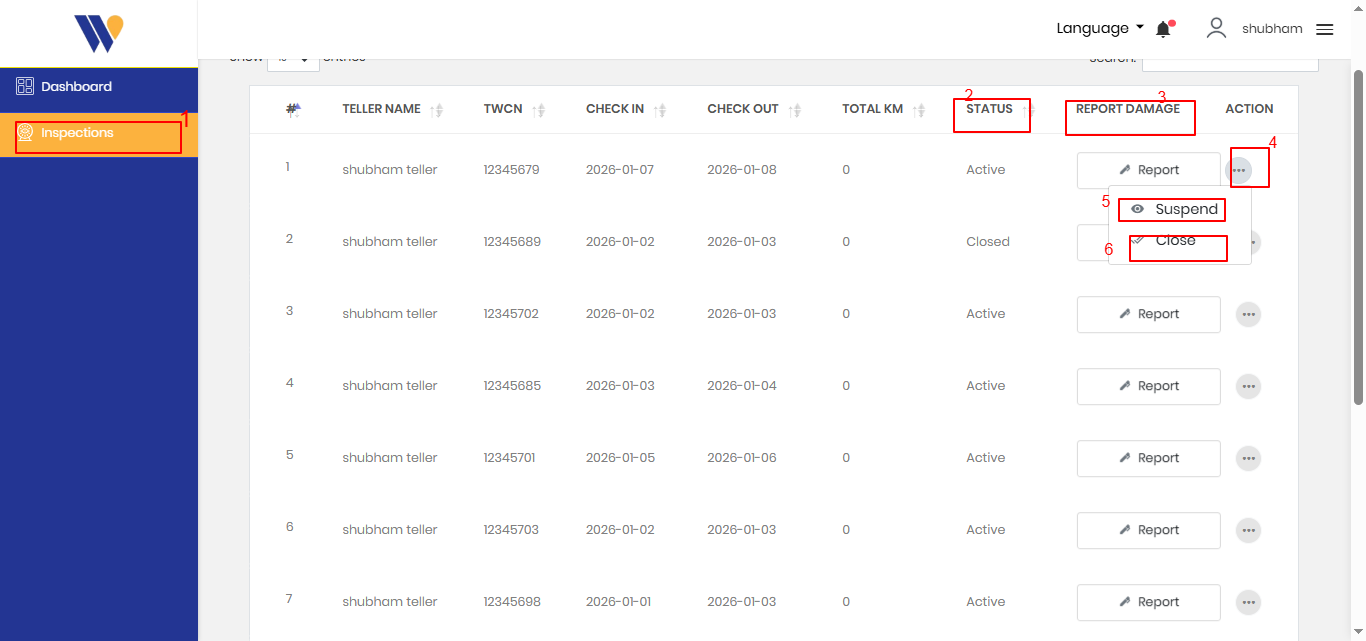
- Inspections Menu Opens the Inspections section where all inspection records are listed and managed.
- Status Column Shows the current state of the inspection (e.g., Active, Closed).
- Report Damage Allows the user to report and record any vehicle damage found during inspection.
- More Actions (⋮) Opens additional actions related to the selected inspection.
- Suspend Temporarily suspends the inspection or associated process.
- Close Marks the contract as complete.
Report Damage View
Reporting and collecting damage cost
Report Damage View
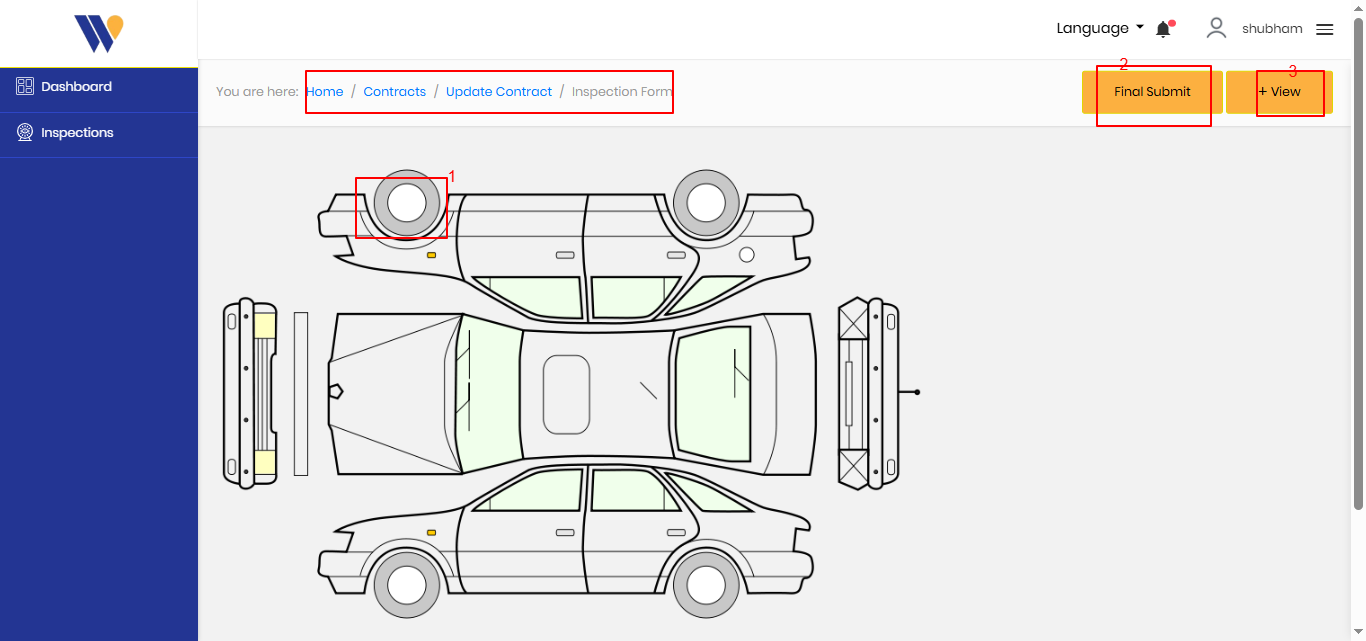
- Damage Selection Area Clickable vehicle part used to mark and record damage during inspection.
- Final Submit Submits the completed inspection form and saves all inspection details.
- + View Opens a detailed view of the inspection or previously recorded damage information.